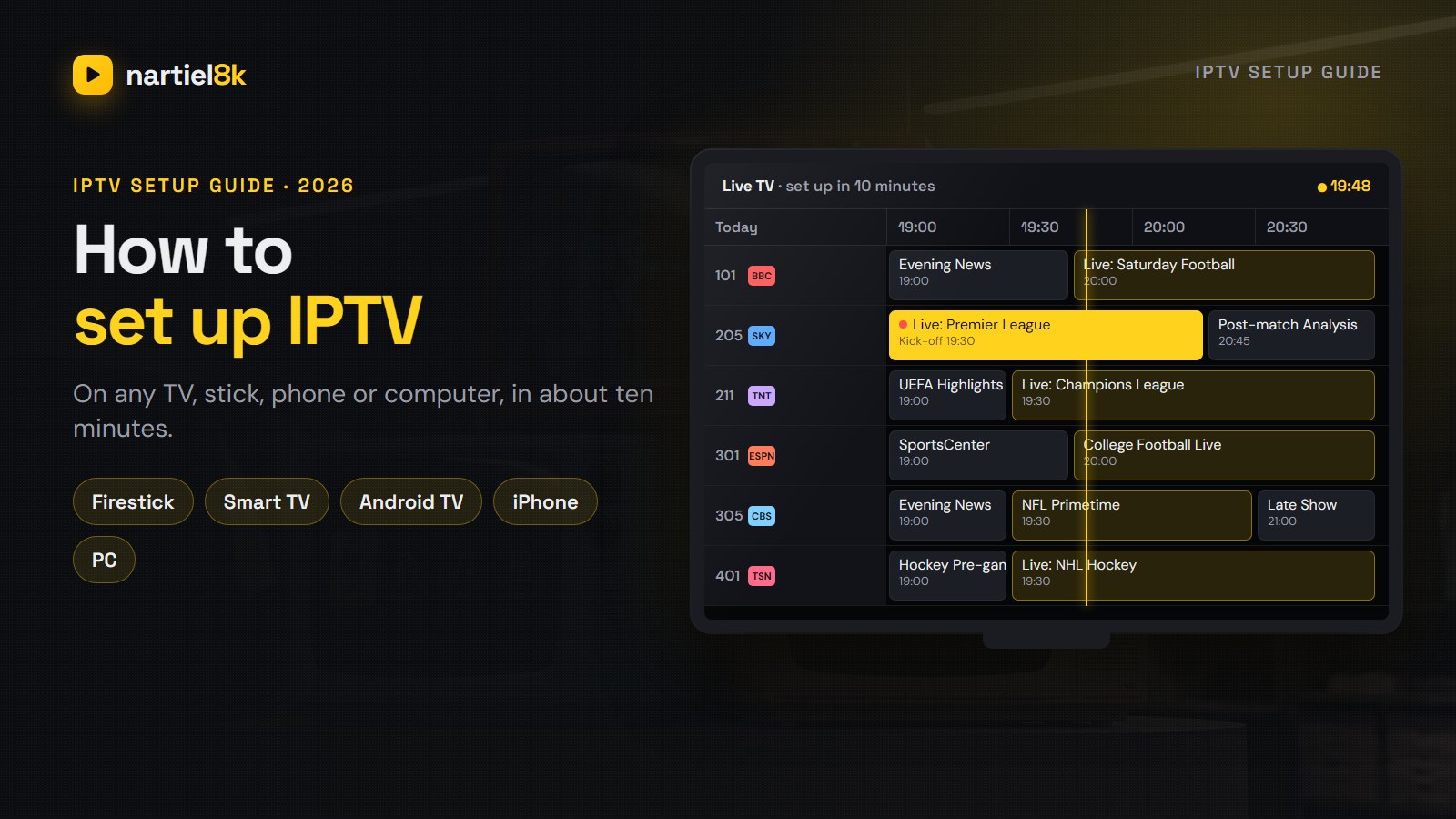
Setting up IPTV takes about ten minutes, and you do not need an engineer, a dish or a box from a cable company. You need a screen that can run an app, a player app, and the login details from your IPTV provider. This guide shows how to set up IPTV step by step, on a Firestick, an Android or Google TV, a Samsung or LG Smart TV, an Apple TV, a phone or a computer, and how to fix the handful of problems that stop a first setup.
The steps are the same whichever service you use. Where it helps, we show what the screens look like with a Nartiel8K login, because that is what we know best.
Quick takeaways
- To set up IPTV you need internet, a device, a player app and a login from your provider. Nothing else.
- Test the speed at the TV first: about 10 Mbps for HD and 25 Mbps for 4K.
- The player app depends on the device. The login (server, username, password) works in all of them.
- Choose the Xtream Codes login when the app offers it. The TV guide and the film library load on their own.
- Most failed setups are a typo in the server address: it needs http:// and the port number.
What you need to set up IPTV
Check these four things before you start. You probably have three of them already.
| What | Enough to start | Better |
|---|---|---|
| Internet | 10 Mbps for HD on one screen | 25 Mbps or more per 4K screen, on a cable or 5 GHz Wi-Fi |
| A device | Any Smart TV, phone or computer from the last five years | A Fire TV Stick 4K, a Google TV device or an Android TV box |
| A player app | A free player such as IPTV Smarters | TiviMate on Android-based TV devices |
| A login | A free 24-hour trial | A plan with one connection for every screen that watches at once |
The speed test matters more than people expect. A TV at the far end of the house can get half the speed your phone gets next to the router, and that gap is behind most “it keeps buffering” first impressions.
How to set up IPTV in five steps
Do these in order. Each step makes the next one easier.
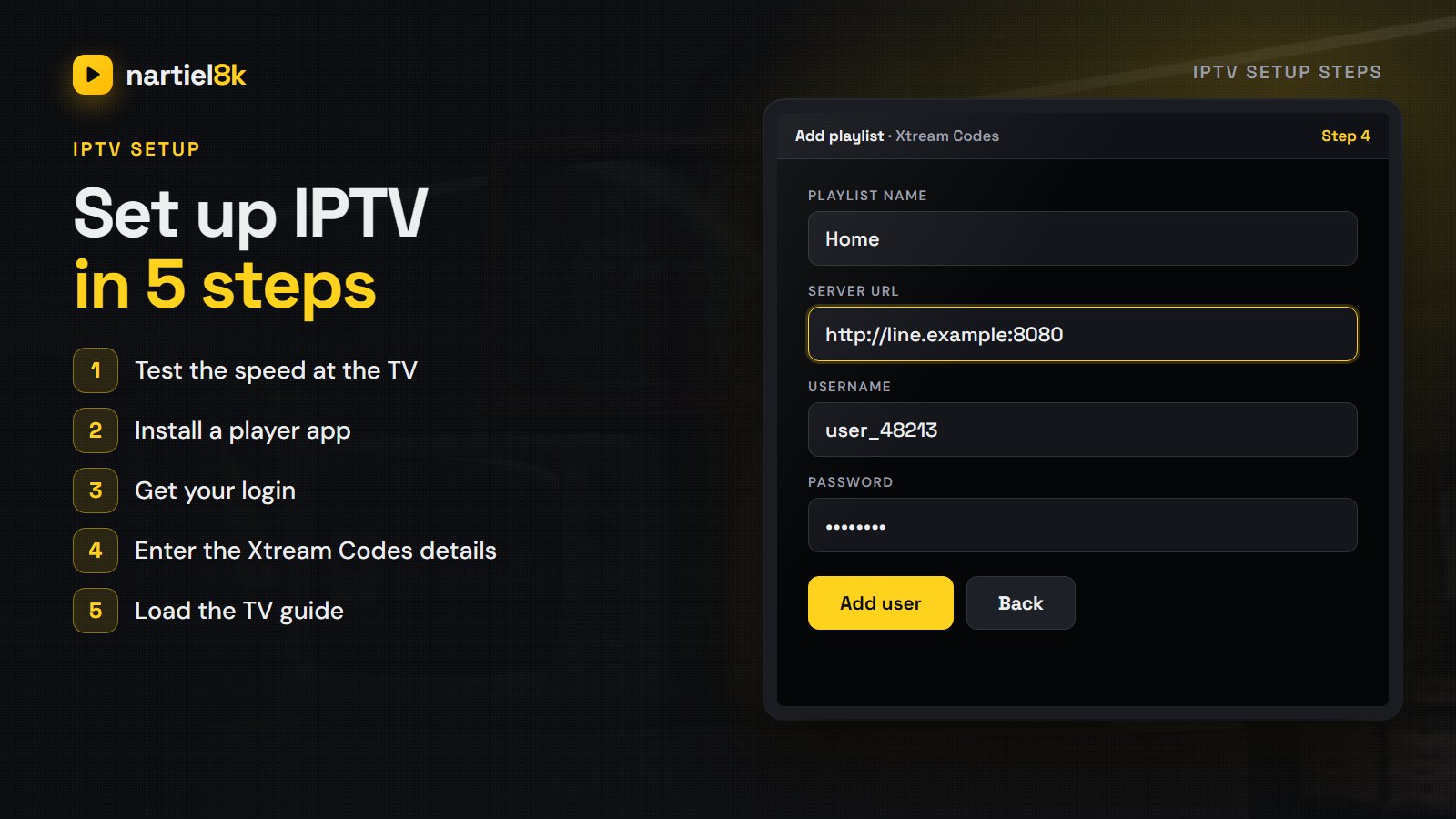
1. Test your internet where the TV is
Run a speed test in the TV’s browser, on the streaming stick, or on a phone held next to the TV. Do it in the evening, when you will actually watch. If you get less than 10 Mbps, plug in a network cable or move to 5 GHz Wi-Fi before you go any further. It is the cheapest fix there is.
2. Install a player app on your device
IPTV is played through an app. On a Firestick or an Android TV, the usual choices are TiviMate and IPTV Smarters Pro. On a Samsung or LG TV you use a player from the TV’s own store. On an iPhone, iPad or Apple TV you use one from the App Store. The table in the next section lists the right app for each device. Read our best IPTV player apps guide if you want to compare them first.
3. Get your login from your provider
Your provider sends the login when you start a trial or buy a plan, usually on WhatsApp or by email. It comes in one of two forms: Xtream Codes (a server URL, a username and a password) or a single M3U playlist link. With Nartiel8K you can start with the free 24-hour trial; tell support which device you use and they send the details that suit it.
4. Enter the details in the app
Open the player and look for “Add playlist”, “Add user” or “Login with Xtream Codes”. Type the server URL, the username and the password exactly as sent. They are case-sensitive, the server must start with http://, and the port number (for example :8080) must stay on the end. Copy and paste from the message when the device allows it.
5. Load the TV guide and tidy the list
The first load takes a minute or two while the channels, the TV guide and the film library download. When it finishes, open the guide and check that tonight’s programmes appear. Then hide the country groups you never watch and add your regular channels to favourites. On a Firestick in particular, a shorter list makes everything faster. Our explainer on what the EPG is covers the guide in more detail.
How to set up IPTV on each device
Step four is the same everywhere. What changes is where the player app comes from:
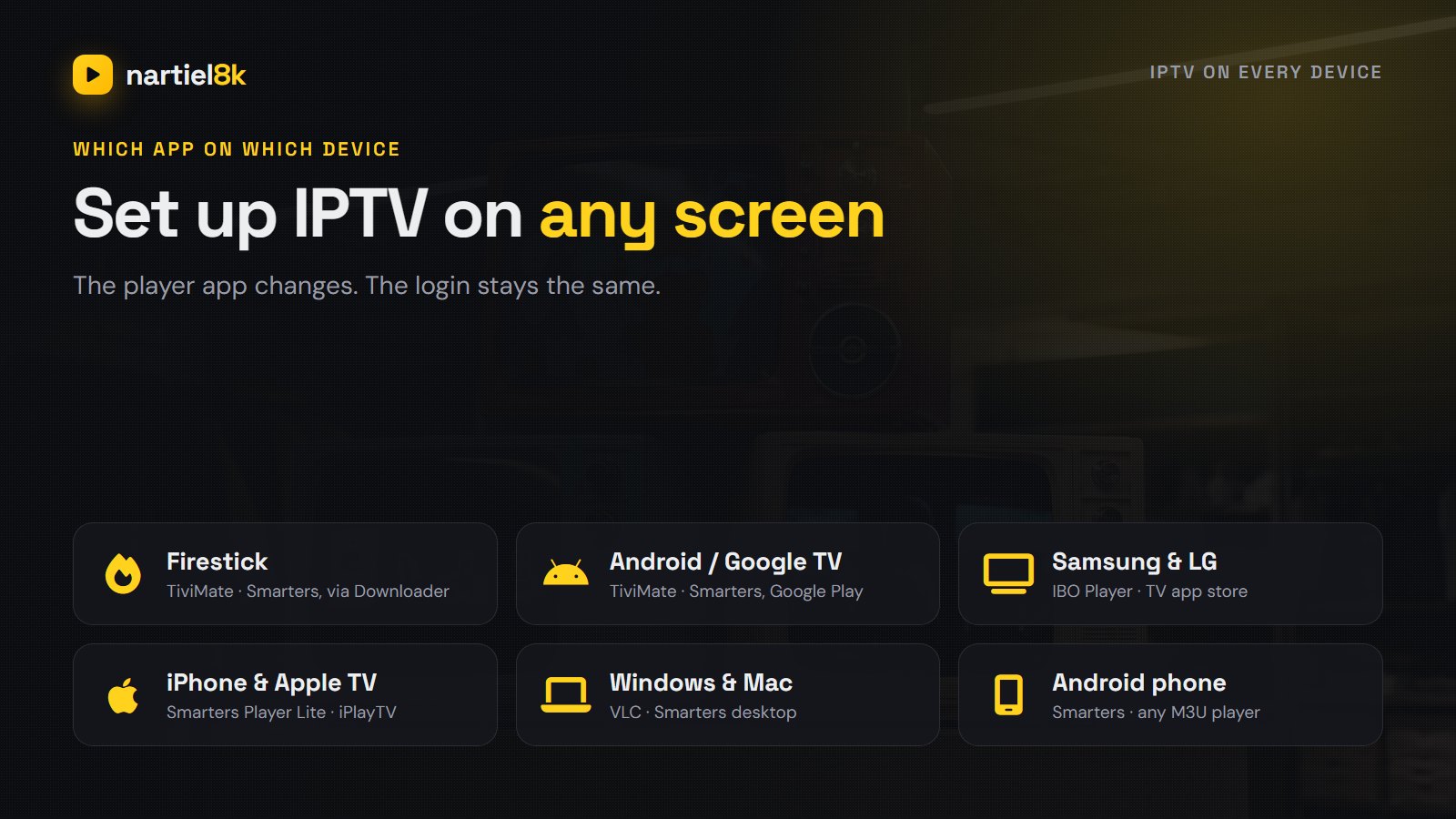
| Device | Player apps | Where the app comes from |
|---|---|---|
| Fire TV Stick, 4K, 4K Max, Cube | TiviMate, IPTV Smarters Pro | The Downloader app, because neither is in the Amazon Appstore |
| Android TV and Google TV | TiviMate, IPTV Smarters Pro | Google Play on the TV or box |
| Samsung Smart TV (Tizen) | IBO Player, IPTV Smarters | Samsung Apps in Smart Hub |
| LG Smart TV (webOS) | IBO Player, other webOS players | LG Content Store; many are activated with the TV’s MAC address |
| iPhone, iPad and Apple TV | Smarters Player Lite, iPlayTV | The App Store |
| Windows PC and Mac | VLC, IPTV Smarters desktop | The developer’s own website |
Firestick
Install the free Downloader app from the Amazon Appstore, allow it to install unknown apps in Settings → My Fire TV → Developer options, then use it to fetch TiviMate or IPTV Smarters from the developer’s official website. Our Firestick IPTV guide goes through every screen.
Android TV and Google TV
Search Google Play for TiviMate or IPTV Smarters Pro, install it and sign in. If you want the best TV guide, TiviMate is the one to try first; see our TiviMate setup guide.
Samsung and LG Smart TVs
These TVs do not run Android apps, so TiviMate is not an option. Install a player from the TV’s own store instead. Some, such as IBO Player, ask you to register the TV’s MAC address on the player’s website and add the playlist there. If your TV is old or slow, a Fire TV Stick plugged into it usually gives a better experience for about $30.
iPhone, iPad and Apple TV
Install Smarters Player Lite or another player from the App Store and sign in with the same Xtream Codes details. It is the easiest way to watch in bed or on a trip.
Windows and Mac
VLC plays an M3U link with no setup beyond pasting it in. For a guide and the film library, use a desktop player such as IPTV Smarters. Our VLC guide shows both.
Xtream Codes or M3U: which setup to choose
If the app offers both, choose Xtream Codes. You type three short details instead of one long link, the TV guide arrives on its own, and films and series get their own sections. Use the M3U link for players that only accept a playlist, such as VLC. If the guide stays empty on an M3U setup, add the separate EPG (XMLTV) link your provider sends.
Settings to change once IPTV is set up
- Favourites: add the twenty channels you watch most. It saves more time than any other setting.
- Hide groups: hide the countries and categories you never open, so the list loads faster.
- Guide refresh: set the guide and the playlist to update every day, so new channels appear on their own.
- Buffer size: in TiviMate, set it to Large or Very large if live sport stutters.
- Decoder: if a channel shows a black screen, switch between hardware and software decoding in the player settings.
IPTV setup not working? Quick fixes
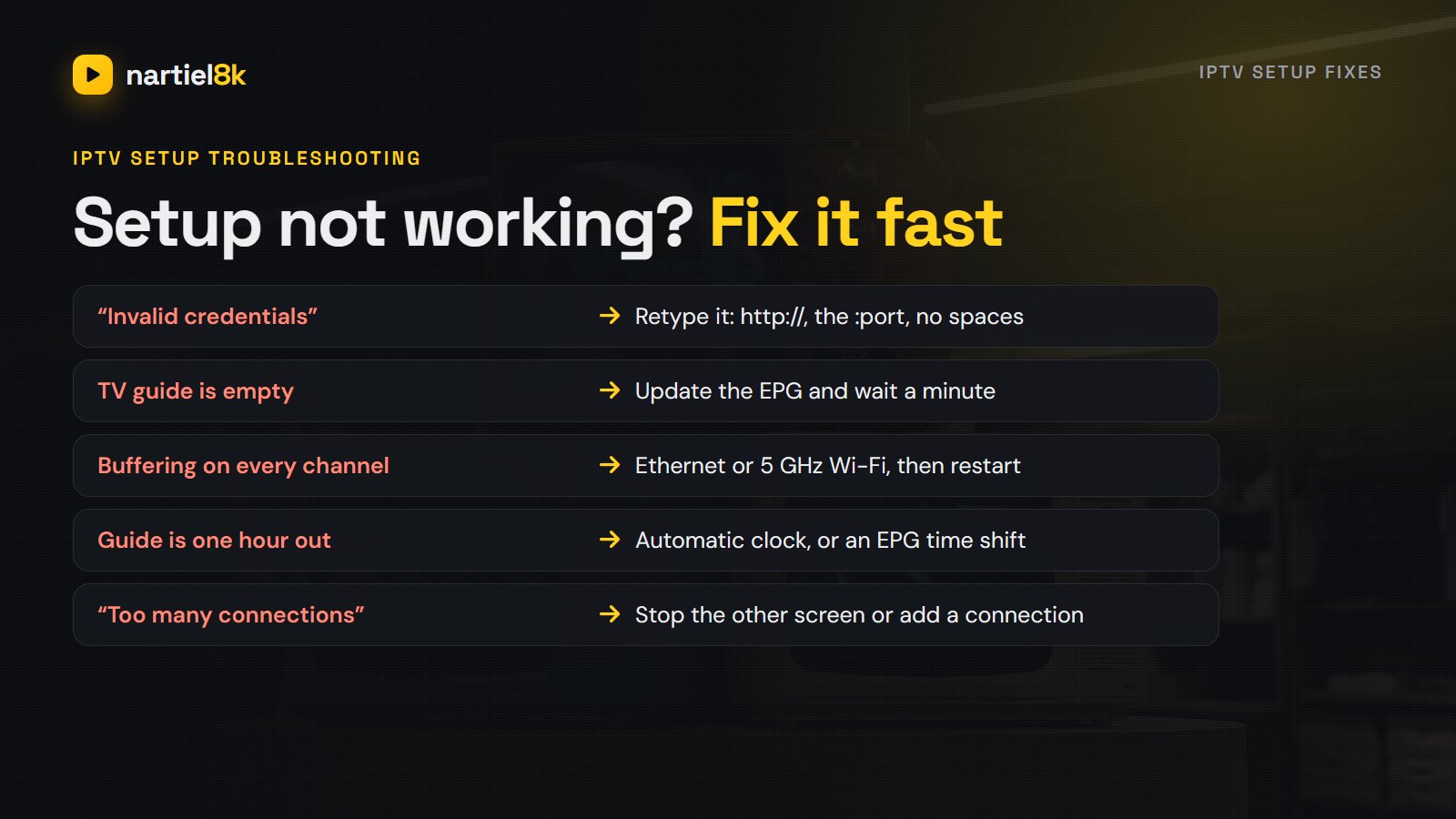
| Problem | Likely cause | Fix |
|---|---|---|
| “Invalid credentials” or login fails | A typo in the details | Retype the server with http:// and the port; check for a space after the password |
| TV guide is empty | The guide has not downloaded yet | Update the EPG in the app settings and wait a minute |
| Buffering on every channel | Weak Wi-Fi at the TV | Ethernet or 5 GHz Wi-Fi, then restart the device |
| Guide is one hour out | Time zone or clock change | Set the device clock to automatic, or add an EPG time shift |
| “Too many connections” | The login is playing on another screen | Stop the other stream, or add a connection to your plan |
Still stuck? The IPTV buffering guide covers the network side, Nartiel8K not working covers account problems, and support on WhatsApp can check your line while you are in front of the TV.
Compare more than one provider before you set up
The setup above works the same with any IPTV service, so the only fair test is a trial of each on your own TV. If you are still building a shortlist, these services publish their line-ups and use the same Xtream Codes setup, so you can test them side by side on the same evening:
- NorvikTV (nordiccast.live): built for Norway, Sweden and the rest of the Nordics, with the Nordic broadcasters in its line-up.
- DrogonTV: aimed at the UK, the USA and Canada, with 80,000+ channels and 240,000+ films and series.
- TrendyScreen: a worldwide line-up of 80,000+ live channels and 240,000+ films and series in HD and 4K.
Test each one on a busy evening: open a live match, the TV guide and a recent film. The one that opens all three quickly on your own screen is the one worth paying for.
IPTV setup FAQ
Install a player app on the TV or on a streaming stick plugged into it, open the app, choose the Xtream Codes login and type the server URL, username and password from your provider. The channels and the TV guide load within a minute or two.
An internet connection of about 10 Mbps for HD or 25 Mbps for 4K, a device that can run a player app, the app itself and a login from an IPTV provider. You do not need a dish, a cable box or an engineer.
No. Most Smart TVs, phones, tablets and computers can run a player app. A Fire TV Stick or an Android TV box helps when your TV’s own app store is limited or the TV is old and slow.
On a Firestick or Android TV, TiviMate or IPTV Smarters Pro. On Samsung and LG TVs, a player from the TV’s own store such as IBO Player. On Apple devices, Smarters Player Lite or iPlayTV. On a computer, VLC or IPTV Smarters.
About ten minutes on most devices. Installing the app takes a few minutes, typing the login takes a few more, and the first load of the channels and the guide takes one or two.
Almost always a typo. Check that the server starts with http://, that the port number is still on the end, and that there is no space after the username or password. Copy and paste the details if your device allows it.
Yes. Install the app on each TV and sign in with the same details. Each screen that plays at the same time uses one connection on your plan, so add connections if two TVs watch at once.
Start watching
Every Nartiel8K plan includes all 80,000+ live channels, the 7-day TV guide and the film library, and works with every app in this guide. Plans start at $15 a month or $80 a year. Pick one on the pricing page, or start with the free 24-hour trial and tell us which device you are setting up.
Related reading
Plex can't read an M3U link on its own. Bridge it with Threadfin and your IPTV…
Seven players tested on the devices people own — which app belongs on a Firestick, an…