The spinning circle always arrives at the worst moment. Nobody’s stream freezes during a repeat on a Tuesday afternoon — it happens on the goal, on the knockout, on the last ten minutes of the film. And the first instinct is almost always the same one: the service is rubbish, time to find another provider.
Sometimes that is true. Far more often it is not. In the support messages we handle, the subscription turns out to be the cause in roughly one case in five. The other four are a wireless band, a buffer setting, a streaming stick with no free storage, or an internet provider quietly slowing streaming traffic down every evening. People pay for a new subscription and inherit exactly the same problem, because they changed the one thing that was working.
This guide is the order we actually use. It starts with the fixes that cost nothing and take two minutes, and ends with how to prove it is the provider — so that if you do switch, you switch for a reason.
Quick takeaways
- Most buffering is Wi-Fi. Moving the device to 5 GHz or an Ethernet cable fixes the majority of cases outright.
- You need roughly 25 Mbps for HD and 50 Mbps for 4K — measured on the device, at the hour you watch.
- Raising the player’s buffer to 3–5 seconds trades a slower channel change for a stutter-free hour.
- Buffering only at night usually means congestion or ISP throttling, not the provider.
- One bad channel is never your connection — it is the source feed or a codec your device cannot decode.
- Two players, two networks. If both fail at the same time, then it is the provider.
First, understand what buffering actually is
A live stream does not arrive as a finished file. Your player downloads a few seconds ahead of what you are watching and keeps that reserve topped up. As long as data arrives faster than you consume it, the reserve holds and the picture is smooth. The moment delivery drops below consumption — even briefly — the reserve empties and the player stops to refill it. That pause is buffering.
Which means every fix in this guide does one of three things: increase the supply (a better connection), reduce the demand (a lower quality tier), or enlarge the reserve (a bigger buffer). Once you see it that way, the diagnosis stops being guesswork.
See it for yourself: bandwidth against quality
Pick a connection speed on the right and a quality tier in the control bar. When the line has the headroom, the stream runs. When it does not, you get the spinner — which is precisely what is happening in your living room, and precisely why dropping from 4K to HD often ends the problem instantly.
The 12 fixes, in the order that finds the fault fastest
1. Reboot the router and the device — properly
Not a menu restart. Power both off at the wall, wait sixty seconds, power them back on. A router that has been up for eight months holds a congested routing table and a warm memory leak; a streaming stick that never sleeps throttles itself when it overheats. This alone resolves a surprising number of “it was fine last week” complaints, and it costs one minute.
2. Test the speed on the device, at the hour it fails
A speed test on your phone at eleven in the morning proves nothing. Install a speed-test app on the actual streaming device and run it at nine in the evening, while somebody else is in the house doing what they normally do. You are looking for roughly 25 Mbps for HD, 50 Mbps for 4K, and — more importantly — a number that does not collapse when you run it three times in a row.
3. Get off 2.4 GHz
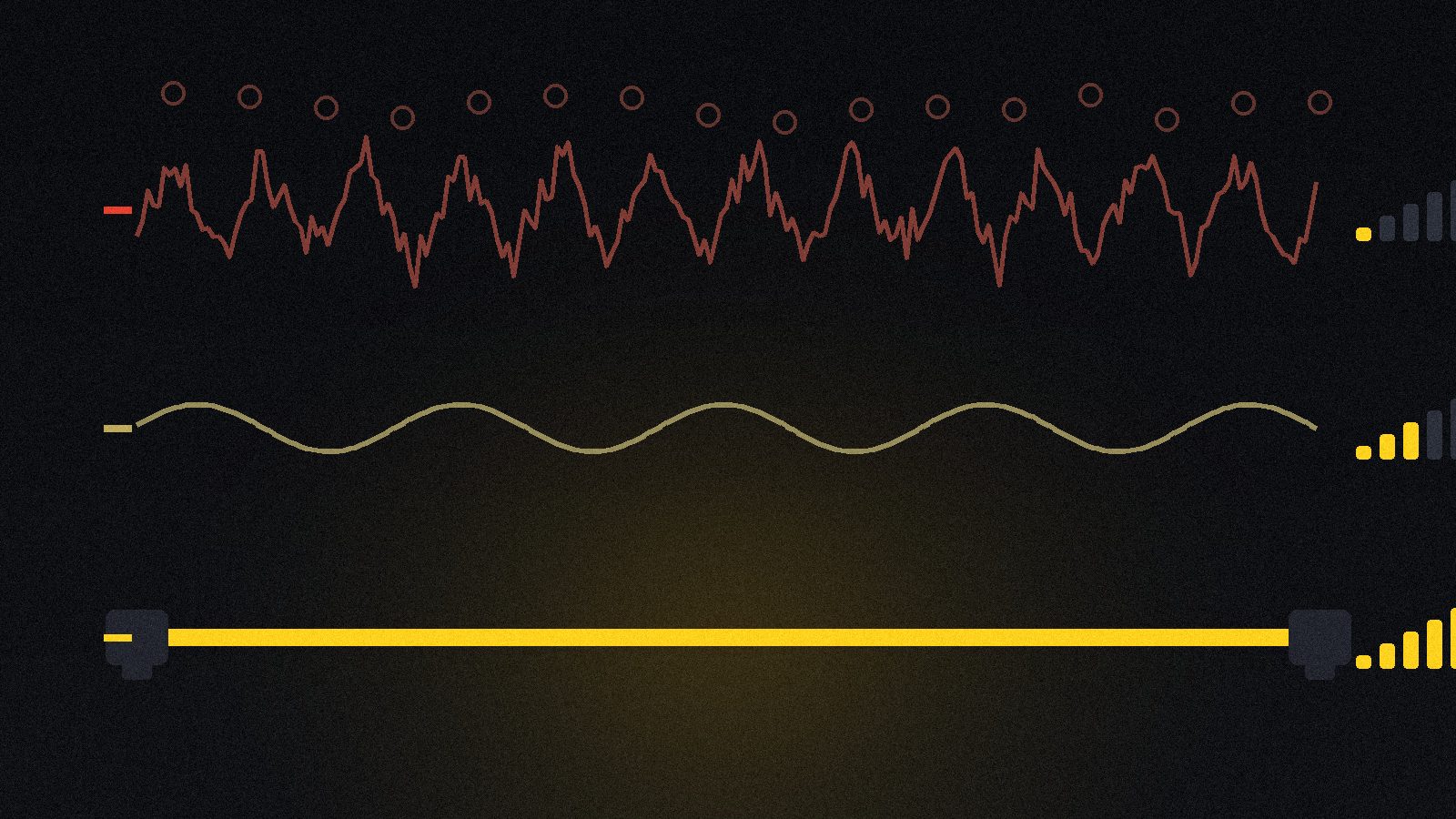
This is the single most effective fix on the list. The 2.4 GHz band is shared with every neighbour, every microwave and every smart plug in the building. Your router almost certainly broadcasts a 5 GHz network as well — often with _5G at the end of the name. Connect the streaming device to that one. If the router hides both behind a single name, go into its settings and split them so you can choose.
4. Better still, use a cable
An Ethernet adapter for a Firestick costs about $15 and ends the argument permanently. For an Android box or a smart TV, the port is already there. Wired is not slightly better than wireless for streaming — it is a different category of reliable, because it does not care about walls, neighbours or the microwave.
AI illustration (see prompt)
5. Raise the buffer in your player
Every player ships with a small default buffer so channels change quickly. That is the wrong trade for anyone on Wi-Fi. In TiviMate it is under Settings → Playback → Buffer size; in IPTV Smarters Pro it sits in the player settings. Set it to three to five seconds. Channel surfing gets slightly slower; the match stops stopping.
6. Switch the decoder from hardware to software
If one channel gives you sound with a black screen, or the picture breaks into coloured blocks, your device’s hardware decoder cannot handle that stream’s codec. Software decoding uses more CPU and fixes it immediately. Most players expose this as hardware / software / auto in the playback menu — try software, and leave it if the channel behaves.
7. Free up storage and clear the cache
A streaming stick with 200 MB free has nowhere to put the buffer it is trying to build. On a Firestick, go to Settings → Applications → Manage Installed Applications, clear the cache on your player, and uninstall anything you have not opened in six months. Keep at least a gigabyte free. Do this monthly — it also clears stale playlist data that produces channels which no longer exist.
8. Drop the quality one step
Not forever — as a test. If the same match plays perfectly in HD but stutters in 4K, you have just proven the fault is bandwidth, not the provider, and you have narrowed the search enormously. The player demo above is exactly this experiment. On a 1080p television, forcing 4K output also wastes bandwidth on detail the screen cannot show.
9. Stop everything else on the network
A game console downloading an update, a phone backing up photos, a cloud sync on a laptop — any of these will happily take everything the line has. Pause them and watch again. If the problem disappears, the answer is QoS settings on the router, or scheduling those downloads overnight.
10. Test the same stream in a second player
This is the step that separates guesswork from diagnosis. Install a second app — or paste the link into VLC on a laptop plugged into the router with a cable — and play the same channel at the same moment. If it is clean there, your subscription is fine and the fault is the device, the app or the wireless. If it stutters in both, move on to the last two steps. Our guide to the best IPTV players covers which second app to pick for your device.
11. Test with and without a VPN
If everything is perfect at midday and unwatchable at nine, and nobody else in the house is doing anything, you may be throttled. Internet providers can identify sustained streaming traffic and slow it. A VPN hides what the traffic is, so they cannot single it out. Run the same channel for ten minutes with the VPN on and ten minutes off, at the same time of night. If the VPN clearly helps, keep it and use a nearby server. If it makes things worse, the cause was never throttling — turn it off and go back to step 3.
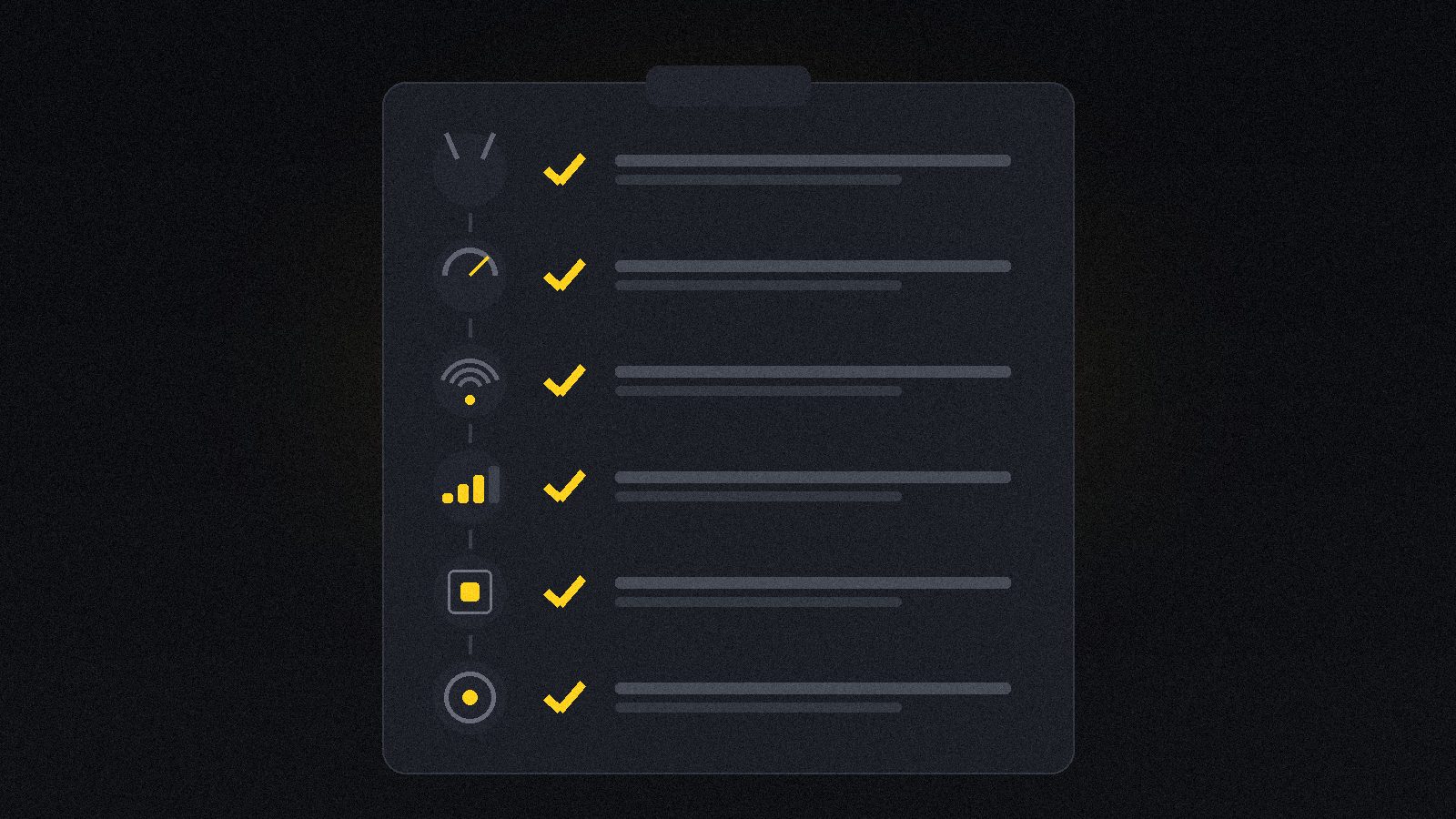
12. Now, and only now, blame the provider
You have earned the right to. But make the report useful: the exact channel name, the time it happened, that you tested two players, and that you tested on a second network — a phone hotspot works — and it failed on both. A decent provider will find an overloaded feed from that. A provider that responds with “restart your router” after you have told them all of that is telling you something too.
AI illustration (see prompt)
Read the symptom, skip to the cause
The pattern of the failure tells you where to look. This table saves most of the work:
| What you see | Most likely cause | Go to |
|---|---|---|
| Every channel buffers, all day | Connection or device | Steps 1–4 |
| Only in the evening | Congestion or ISP throttling | Steps 9 & 11 |
| One channel only | Source feed or codec | Step 6 |
| 4K stutters, HD is fine | Not enough bandwidth | Steps 3, 4 & 8 |
| Sound plays, screen is black | Hardware decoder | Step 6 |
| Fine on the phone, bad on the TV | The streaming device | Steps 3 & 7 |
| Stutters every few minutes, evenly | Buffer too small | Step 5 |
| Only during big live events | Provider server load | Steps 10 & 12 |
How much speed you actually need
Headline broadband numbers are almost useless here, because they describe a best case at a quiet hour. What matters is what reaches the streaming device while the household is awake:
| What you are watching | Per stream | Comfortable line speed |
|---|---|---|
| SD channel | 3 – 5 Mbps | 10 Mbps |
| HD channel | 8 – 12 Mbps | 25 Mbps |
| Full HD sport (high motion) | 12 – 18 Mbps | 35 Mbps |
| 4K channel | 20 – 25 Mbps | 50 Mbps |
| Two TVs at once in HD | 2 × 12 Mbps | 50 Mbps |
Notice the gap between the middle column and the right one. The headroom is not waste — it is what absorbs the moment your partner opens a video call.
Firestick owners: read this bit twice
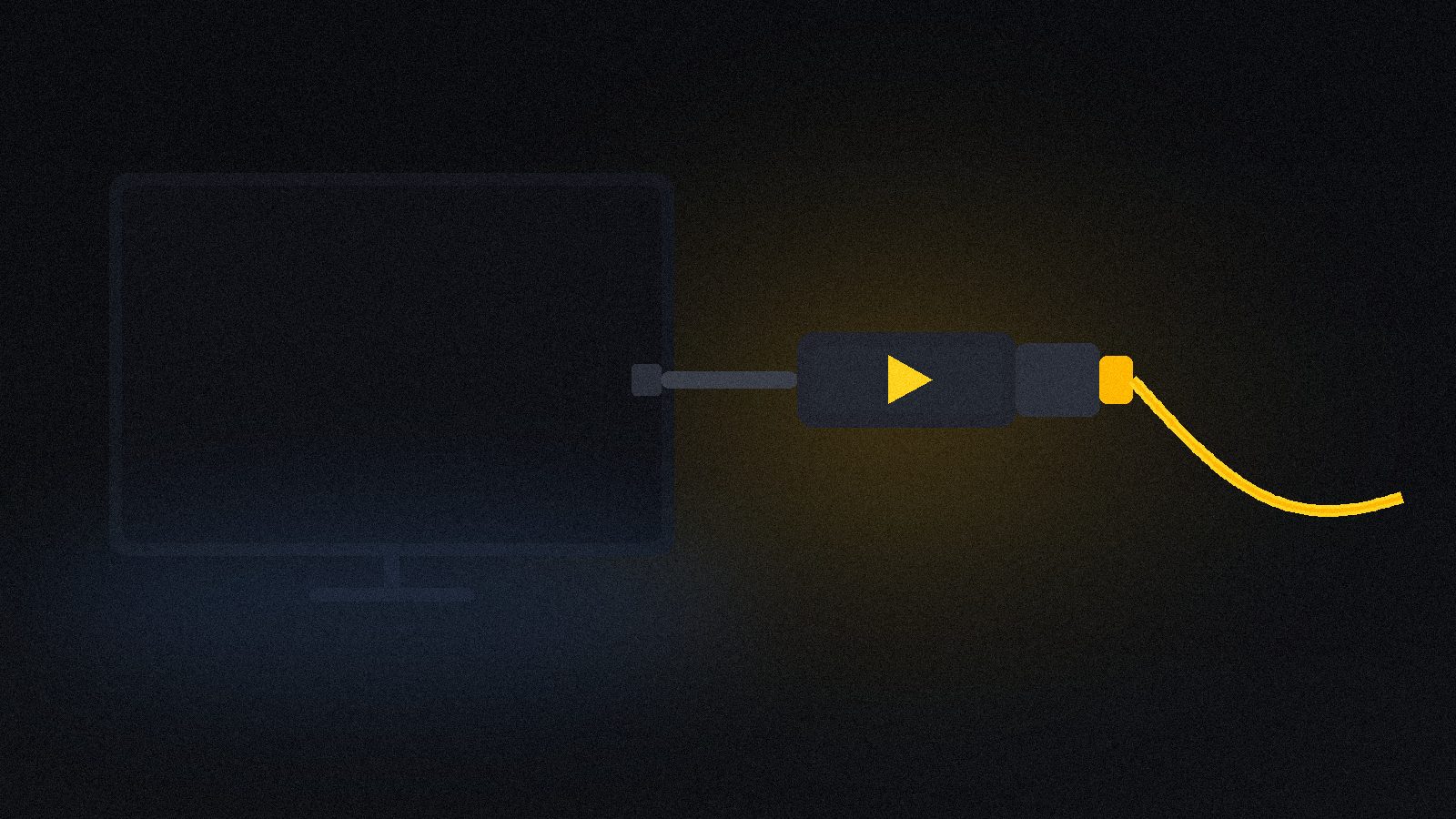
More buffering reports come from Fire TV Sticks than from every other device combined, and it is rarely the subscription’s fault. A Firestick is a deliberately cheap computer with a small aerial, limited storage and no active cooling, and it is usually tucked into an HDMI port behind a hot television — which is both the worst place for radio reception and the worst place for heat.
- Use the HDMI extender that came in the box. It moves the stick out from behind the screen and often adds a bar of signal.
- Clear the cache monthly and keep a gigabyte free.
- Set the display to 1080p if the television is 1080p. Forcing 4K output does nothing but consume bandwidth.
- Turn off automatic app updates so a background download does not land mid-match.
- Consider the Ethernet adapter. Fifteen dollars, and the problem usually ends there.
If you are setting one up from scratch, our Firestick installation guide covers the whole process, and the setup guide has the equivalent for every other device.
AI illustration (see prompt)
When it really is the provider
Some buffering genuinely belongs to the service, and it has a signature you can recognise. It fails at the same time for everyone — kick-off, a title fight, the opening episode — because that is when the servers are loaded. It fails on the same channels rather than randomly. And it fails on every network you try, including a phone hotspot that has nothing to do with your house.
Cheap providers oversubscribe. They size their capacity for an ordinary Wednesday, not for the night half their customers want the same match, and the maths catches up with them at exactly the moment you care most. No setting on your television fixes that. It is the one failure that a subscription change genuinely solves — and the reason it is worth testing a new service during a live event rather than on a quiet afternoon.
How nartiel8k handles the peak-time problem
- Anti-Freeze™ 9.8 servers provisioned for the load that breaks cheaper providers — the big nights are the whole point of the architecture.
- Multiple quality tiers per channel, so a modest connection can take the HD feed instead of failing on 4K.
- Any player you like — a standard Xtream Codes login means step 10 above is always available to you.
- 24/7 human support that will check a specific feed when you report a specific channel and time.
- A 24-hour free trial — use it during a live match, not on a Tuesday afternoon. That is the only test that counts.
- A written refund policy, because a provider confident about peak time should be willing to put it in writing.
The bottom line
Work down the list rather than across it. Reboot, measure, move to 5 GHz or a cable, raise the buffer, free some storage — that is twenty minutes and it fixes most cases for nothing. Then test a second player on a second network, which turns an argument into evidence.
If the stream fails on two apps, on two networks, at the same time on the same channels, you have found a provider problem and you should change provider. If it does not, changing provider would have changed nothing at all — and you would still be looking at the spinning circle on a new subscription.
Frequently asked questions
In order of how often it is the real cause: Wi-Fi on the crowded 2.4 GHz band, a player buffer set too small, an underpowered or overheating streaming stick, an internet provider throttling streaming at peak time, and last of all an overloaded provider server. Most people replace the subscription when the fault was the wireless band.
About 25 Mbps for comfortable HD and 50 Mbps for 4K, measured on the streaming device at the hour you actually watch. Stability matters more than the headline figure — a steady 30 Mbps beats a 500 Mbps line that collapses every evening.
Two causes look identical from the sofa: your neighbourhood’s shared connection is congested at peak time, or your internet provider is throttling streaming traffic. Test both — run a speed test at 9pm and compare it with midday, then run the same channel through a VPN. If the VPN removes the problem, it was throttling.
Only when the cause is ISP throttling. A VPN hides the type of traffic so it cannot be singled out. If the cause is weak Wi-Fi or a slow device, a VPN adds a hop and makes things slightly worse. Test it on and off on the same channel at the same time of night.
A Firestick is a low-powered device with limited storage and a weaker aerial than a modern phone, sitting behind a television that radiates heat. Clear the cache, free storage, use the HDMI extender so it is not buried behind the screen, move it to 5 GHz, and set output to 1080p on a 1080p television.
That is not your connection. A single bad channel is either an overloaded source feed or a codec your device cannot decode in hardware. Switch the decoder to software; if that fails, look for the same channel in another group or quality tier and report the exact channel name to support.
Isolate everything else first. If the same stream fails in two different player apps, on two different networks — your Wi-Fi and a phone hotspot — at the same time and on the same channels, the servers are the cause. If it plays on the hotspot, the fault is at home.
Sometimes. Players differ in buffer handling and in how well they absorb a weak signal, and the right settings genuinely help — see our player comparison. But no app can create bandwidth that is not there. If two players fail identically, stop changing apps.
More reading on peak-time performance
Server capacity is the part providers rarely talk about. These three publish their plans and channel counts openly, which at least lets you compare:
- KiloTV — worth testing during a live event, as above.
- StrimoIPTV — compare their quality tiers with the bandwidth table here.
- IPPlayTV — another provider offering short plans you can trial.
Related reading
Local networks, NFL & NBA, Latino channels and fair pricing — what US viewers should demand.
Premier League coverage, Freeview channels, fair pricing in pounds and a ten-minute Firestick setup.