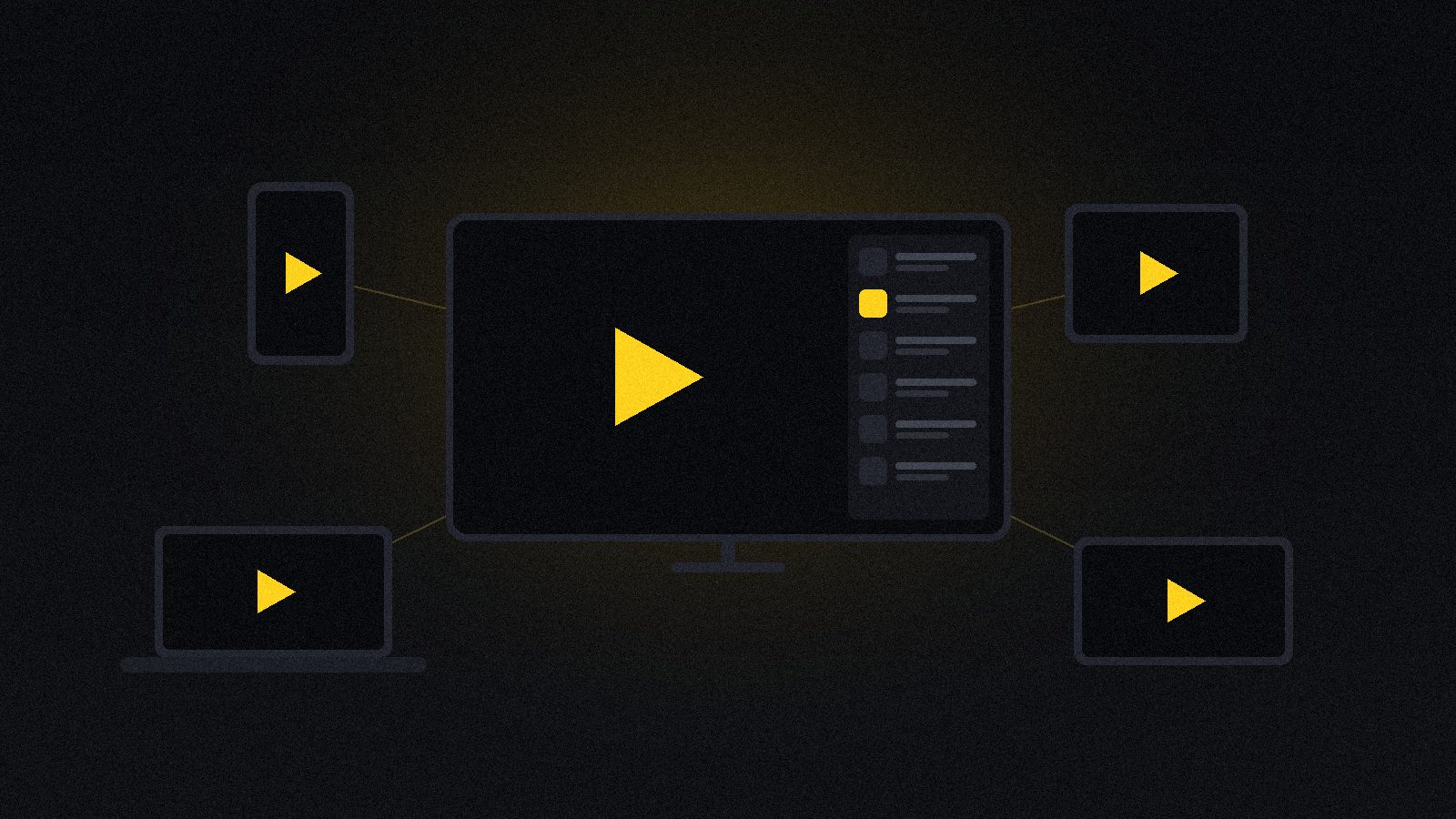
People spend weeks choosing an IPTV subscription and about four seconds choosing the app they will actually look at every night. That is the wrong way round. The subscription decides what is available; the player decides whether finding it takes two clicks or two minutes, whether the TV guide is usable, whether the channel you watch most is one button away, and whether a weak Wi-Fi signal turns into a stutter or gets absorbed quietly.
The same subscription can feel premium in one app and broken in another. We have run ours through all of the players below on the devices people actually own — a Firestick, an Android TV box, a Samsung smart TV, an iPhone and a Windows laptop — and this guide is what came out of it: which player belongs on which device, what each one costs, the settings that matter, and the honest limits of what any app can fix.
Quick takeaways
- TiviMate is the best IPTV player on Android TV and Firestick — nothing else comes close on the TV guide.
- IPTV Smarters Pro is the best all-rounder: one login, and it runs on practically everything including iPhone and smart TVs.
- Samsung and LG televisions cannot run TiviMate. Use Smarters Pro, IBO Player or a $30 Firestick.
- The app is empty until you add a subscription — a player is not a channel source.
- Three settings fix most complaints: decoder, buffer size and turning off the guide preview.
- No player can fix a connection problem. If every app stutters at 9pm, the app is not the issue.
What an IPTV player actually is
An IPTV player is an empty shell. It ships with no channels, no films and no guide. What it does is take a subscription — an Xtream Codes login, which is a server address, a username and a password, or an M3U playlist link — and turn that raw list into something you can sit in front of: sorted channel groups, a seven-day TV guide, favourites, a search box, resume-where-you-left-off on series.
That distinction matters because of how these searches usually go wrong. People install TiviMate, see nothing, and assume the app is broken. It is not. It is waiting for the login that your provider gives you. The app and the subscription are two separate purchases from two separate places, and neither one works without the other.
Try the interface before you install anything
Below is a working mock-up of the layout every good IPTV player shares: the stream on the left, the channel list on the right, a guide line under the title and a quality selector in the control bar. Click a channel, change the quality, pause it. It is a demonstration of the interface, not a live stream — but it is exactly the shape of what you will be looking at every evening.
The short answer
If you want the recommendation without the reasoning, here it is:
| Player | Best for | Cost | Verdict |
|---|---|---|---|
| TiviMate | Android TV, Firestick, NVIDIA Shield | Free / ~$10 one-off Premium | Best overall on Android |
| IPTV Smarters Pro | Everything — phone, TV, laptop | Free | Best all-rounder |
| XCIPTV | Android boxes, catch-up viewers | Free | Strong alternative |
| Televizo | Older or low-powered devices | Free / small Pro | Lightest and fastest |
| IBO Player | Samsung Tizen, LG webOS | Small one-off per device | Best for smart TVs |
| GSE Smart IPTV | iPhone, iPad | Free / paid tier | Solid on iOS |
| VLC | Testing a link on a laptop | Free | Diagnostic tool, not a daily player |
1. TiviMate — the best IPTV player on Android TV
If your device runs Android TV — a Firestick, a Chromecast with Google TV, an NVIDIA Shield, a generic Android box — TiviMate is the answer, and it is not a close contest. It was built for a remote control rather than ported from a phone, which is why it feels like a television rather than an app pretending to be one.
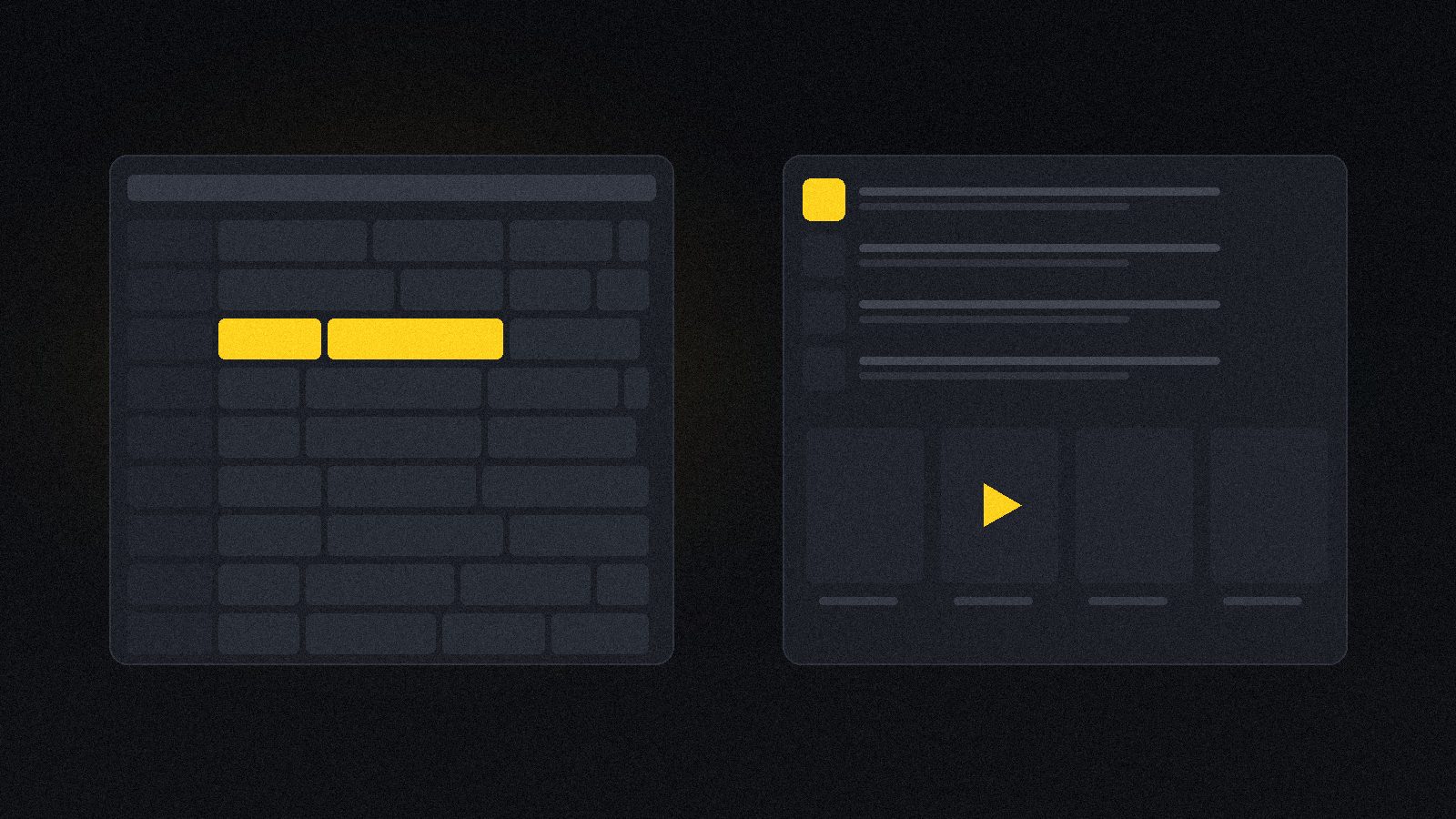
What sets it apart is the TV guide. Most players show a list of channel names with the current programme tacked on. TiviMate renders a proper scrollable grid, several days wide, with a preview window that keeps playing while you browse — the thing that people miss most when they leave cable. Channel switching is close to instant. Groups can be merged, hidden and reordered until the list contains only what your household watches.
Premium is a one-off unlock of roughly $10 and adds recording, picture-in-picture, multi-view for several matches at once, and support for more than one playlist. It is the only paid app on this list worth paying for.
The limits: Android only. There is no version for iPhone, iPad, Samsung Tizen or LG webOS, and there never has been. If your TV is a Samsung, TiviMate is simply not an option unless you plug in a streaming stick.
2. IPTV Smarters Pro — the best all-rounder
Smarters Pro is the one to install if the house has mixed devices. The same subscription login works on Android, iOS, Windows, macOS, Fire OS and most smart TVs, and the layout is close enough on all of them that nobody has to relearn anything when they move from the living room to a phone.
It handles the essentials well: Xtream Codes or M3U, live TV, films and series in separate sections with posters and descriptions, a workable EPG, favourites, multi-screen, external player support and parental controls. It is the app most providers write their setup instructions for, which also means help is easy to find.
It is not as fast as TiviMate on a TV remote and the guide is a step down, but it is free, it is everywhere, and it is the safest first install. We wrote a complete Smarters Pro setup guide covering every device if you want the detail.
AI illustration (see prompt)
3. XCIPTV Player — the strong alternative
XCIPTV sits between the two above. It is free, it looks modern, and it does one thing better than most: catch-up. If your provider offers an archive, XCIPTV surfaces it cleanly, so a match that finished two days ago is two clicks away rather than lost. It also supports multi-screen, has a built-in download manager for on-demand content, and takes both Xtream Codes and M3U.
Updates arrive less predictably than TiviMate’s, and on older boxes the interface can feel heavier than it needs to be. Worth installing as a second app: when one player stutters and another does not, you have learned something useful about where the fault is.
4. Televizo — the lightest option
Televizo is the player to reach for when the hardware is modest — a first-generation Firestick, an ageing Android box, a cheap tablet. It is small, it launches fast, and it wastes nothing on animation. The interface is plain, but it is clear, and on slow devices plain beats pretty every time.
The free version covers live TV and the guide; a small Pro tier adds extra playlists and removes limits. If TiviMate feels sluggish on your box, Televizo is the fix.
5. IBO Player — for Samsung and LG televisions
Samsung’s Tizen and LG’s webOS are not Android, so most of this list is unavailable to them. IBO Player is built specifically for those sets and is sold through their own app stores. Activation is a small one-off fee per device, and the setup is unusual: the TV shows a MAC address and a device key, you enter those on the IBO website along with your playlist, and the television pulls everything down.
It works, and it saves you buying hardware. Be aware of the trade-off: one activation is tied to one television, so a second set means paying again, and the interface is a generation behind what Android players offer. If you have more than two televisions, a $30 Firestick each is usually cheaper and better.
6. GSE Smart IPTV — the iPhone and iPad choice
On iOS the field is thinner, and GSE Smart IPTV has been the dependable option for years. It takes Xtream Codes and M3U, supports EPG, has a decent parental lock, and plays nicely with AirPlay — which in practice means an iPhone plus an Apple TV becomes a perfectly good living-room setup without buying anything else.
The interface is dense and the settings menu is not friendly on a first visit. Once the playlist is loaded you rarely go back into it. IPTV Smarters Pro is also on the App Store and is the easier of the two to start with.
7. VLC — not a daily player, but keep it
VLC will open an M3U link on any laptop in about ten seconds. It has no guide, no favourites, no film library and no interface worth the name for television — nobody should use it every evening.
What it is excellent at is answering one question: is the problem the subscription, or the app? Paste the link into VLC on a laptop wired to the router. If it plays cleanly there but stutters on the TV, the subscription is fine and the fault is the device, the app or the Wi-Fi. That five-minute test saves hours of guessing, and it is the first thing a good support agent will ask you to do.
AI illustration (see prompt)
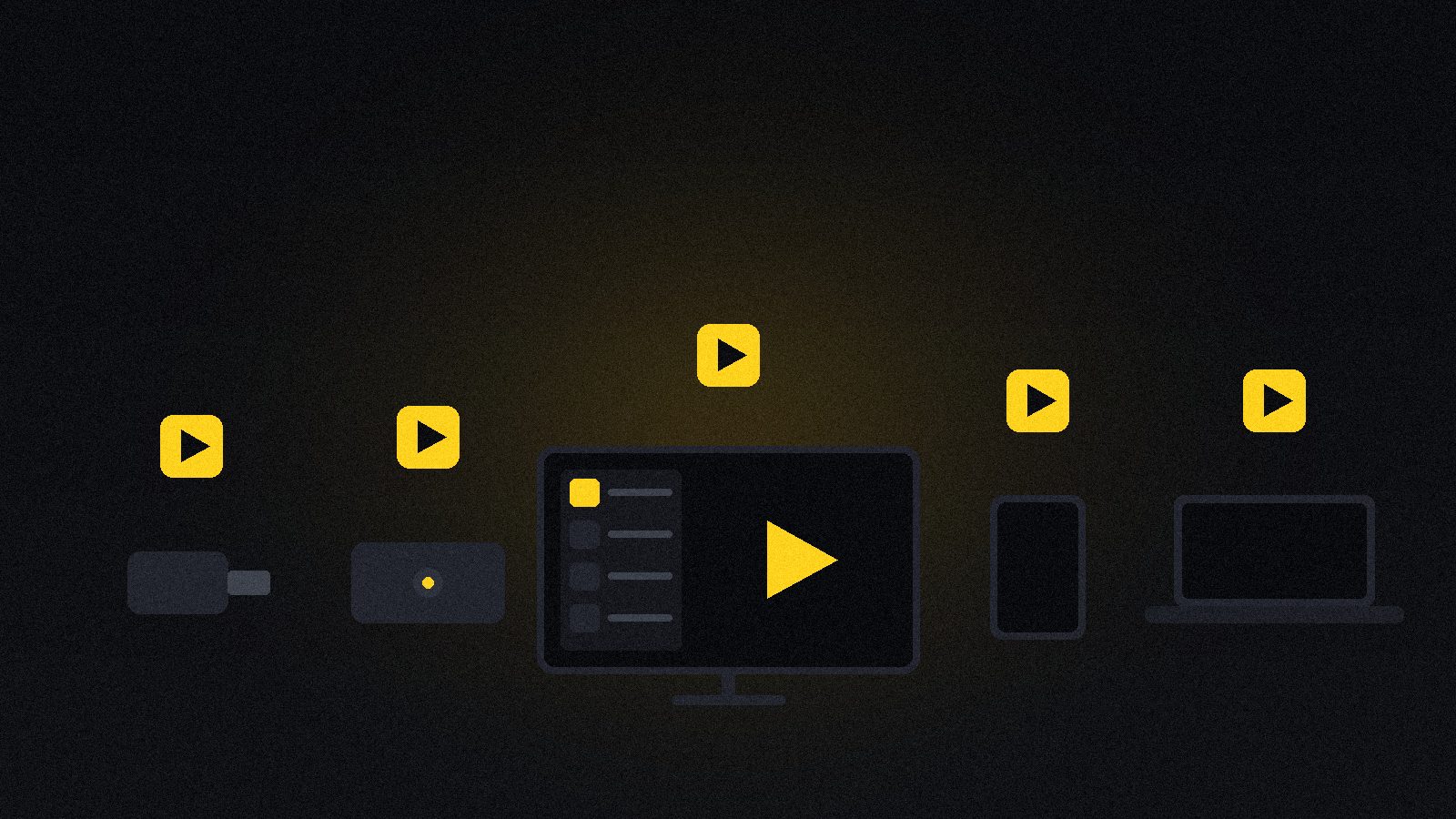
Which player for which device
| Your device | Install this | Second choice |
|---|---|---|
| Fire TV Stick / Fire TV Cube | TiviMate | IPTV Smarters Pro |
| Android TV box / NVIDIA Shield | TiviMate | XCIPTV |
| Chromecast with Google TV | TiviMate | Televizo |
| Samsung (Tizen) | IBO Player | Smarters Pro / Firestick |
| LG (webOS) | IBO Player | Smart STB / Firestick |
| iPhone / iPad | IPTV Smarters Pro | GSE Smart IPTV |
| Apple TV | IPTV Smarters Pro | AirPlay from an iPhone |
| Android phone / tablet | IPTV Smarters Pro | Televizo |
| Windows / macOS laptop | IPTV Smarters Pro | VLC for testing |
| Old / slow hardware | Televizo | VLC |
Setting up any of them in five minutes
Every player on this list follows the same five steps. Learn it once and the rest are variations.
- 1. Install the app. From the device’s own store where possible — Google Play, the Amazon Appstore, the App Store, the Samsung or LG store. Only sideload when a store version genuinely does not exist for your device.
- 2. Choose the login type. Pick Xtream Codes API if your provider gave you a URL, a username and a password. Pick M3U playlist if you were given one long link.
- 3. Enter the details exactly. This is where nine out of ten setups fail: a trailing space, a capital letter,
httpwhere it should behttps, or a missing port number. Copy and paste rather than typing on a remote. - 4. Let the list load. First load pulls tens of thousands of entries and takes a minute or two. It is not frozen. Subsequent launches are instant.
- 5. Tidy the groups. Hide every category you will never open, then favourite the ten channels you actually watch. Five minutes here saves scrolling every night for a year.
Device-by-device walkthroughs with screenshots are on our setup guide, and there is a dedicated Firestick installation guide if that is your device.
The settings that fix most complaints
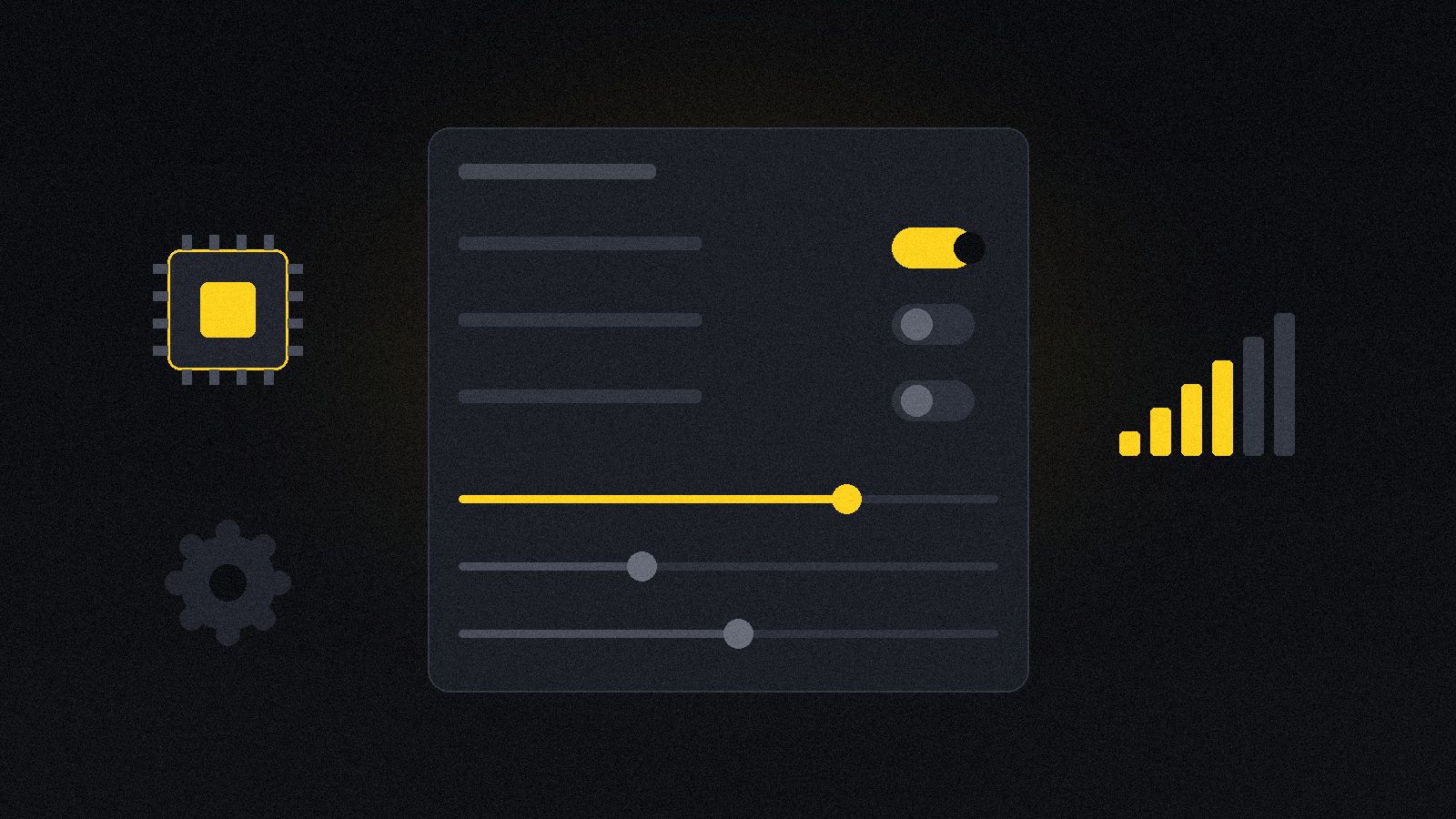
Before blaming a player, change these three things. In our testing they resolve the large majority of “this app is bad” complaints.
- Decoder: hardware → software. If a specific channel shows sound with a black screen, or breaks into green blocks, the device’s hardware decoder cannot handle that stream’s codec. Software decoding costs a little CPU and fixes it.
- Buffer size: increase it. Most players default to a small buffer for fast zapping. On Wi-Fi, raising it to 3–5 seconds trades a moment at startup for a stutter-free hour.
- Guide preview: off. A preview window that keeps playing while you browse the guide means the device is decoding video and downloading a week of listings at once. On a Firestick that is often exactly where the stutter comes from.
Two more worth knowing: set the app’s output to match your screen instead of forcing 4K on a 1080p television, and clear the app cache once a month — playlist data accumulates and a stale cache produces channels that have not existed for weeks.
AI illustration (see prompt)
What no player can fix
An app is a window onto a stream. It cannot create bandwidth that is not there, and it cannot repair a server that is overloaded at kick-off. If you have tried two different players and both stutter at the same time every evening, the app is not the variable — work through our guide to fixing IPTV buffering instead, which goes through the connection, the device and the provider in the order that actually finds the cause.
The other thing a player cannot fix is the subscription behind it. A beautiful interface in front of a weak service is still a weak service. The order that works is: choose a provider that holds up at peak time, then choose the player that suits your device.
What this looks like on nartiel8k
Measured against everything above, honestly:
- Any player you like. We issue a standard Xtream Codes login, so TiviMate, Smarters Pro, XCIPTV, Televizo, IBO and GSE all work — there is no locked-down app you are forced into.
- A real 7-day EPG, which is what makes TiviMate’s guide worth using in the first place.
- 80,000+ live channels and 240,000+ films and series, sorted into groups the players can read properly.
- Anti-Freeze™ 9.8 servers built for peak-time load, because the best app in the world cannot rescue a weak stream.
- Setup help on chat, 24/7, including someone who will paste the correct URL format for your app.
- A 24-hour free trial — long enough to install two players and see which one you prefer before paying anything.
The bottom line
Android TV or a Firestick: install TiviMate, and pay the $10 if you want recording and multi-view. A mixed household: install IPTV Smarters Pro everywhere and keep one interface. A Samsung or LG television: IBO Player, or a cheap Firestick to unlock the better options. An iPhone: Smarters Pro, with GSE as backup. And keep VLC on a laptop — not to watch with, but to answer the question of whose fault it is when something stops working.
Install two, spend a week with each, and keep the one you stop noticing. That is what a good player does: it disappears.
Frequently asked questions
For an Android TV box or a Firestick, TiviMate — its guide, recording and channel management are a class above everything else. For a household with mixed devices, including iPhone and Samsung or LG televisions, IPTV Smarters Pro is the best all-rounder because the same login works everywhere. There is no single winner; the right player depends on the device you watch on.
On Android TV and Firestick, yes — a faster interface, a far better TV guide, multi-view, recording and multiple playlists. Smarters Pro wins on reach: Android, iOS, Windows, macOS and most smart TVs, so one app covers the whole house. TiviMate’s best features need the paid Premium unlock; Smarters Pro does not.
The apps are separate from the subscription. TiviMate is free with a one-off Premium unlock of around $10. Smarters Pro, Televizo and GSE are free with optional paid tiers. IBO Player charges a small one-off activation per device. None of them include channels — they are empty shells until you enter a subscription.
Samsung Tizen and LG webOS do not run Android apps, so TiviMate is unavailable. Use IPTV Smarters Pro, IBO Player or Smart STB from the television’s own store. If that store is limited, a $30 Firestick or Android box on an HDMI port gives you the full range of players and is usually smoother.
Partly. Switching the decoder from hardware to software, raising the buffer size and turning off the guide preview all help, and some players absorb weak Wi-Fi better than others. But a player cannot invent bandwidth — if every app buffers at the same time each evening, the cause is the connection or the provider’s servers. Our buffering guide works through it properly.
The most common way to load a subscription into a player: a server URL, a username and a password. Those three fields pull in the channel list, the on-demand library and the TV guide automatically, and they keep working when the provider updates its list. An M3U link does the same in one line but usually brings a weaker guide.
Not for the app to function. Some viewers use one because their internet provider throttles heavy streaming, and a VPN can smooth that out. It also adds a hop, so choose a nearby server and test with and without it before deciding it helped.
You can install as many players as you like with one login. What is limited is simultaneous streams — most plans allow one or two screens playing at the same moment. TiviMate on the living-room box and Smarters Pro on a phone is fine; watching both at once may need a multi-device plan.
More reading before you install
Player support varies between providers — these three publish which apps their logins work with, without a sales call:
- KiloTV — check which player apps their subscription supports.
- StrimoIPTV — compare their EPG coverage with the guide requirements above.
- IPPlayTV — another provider issuing standard Xtream Codes logins.
Related reading
The real causes of freezing and lagging, in the order that finds the fault fastest —…
Your Nartiel8K login explained — and the fastest way to get it running on Firestick, Samsung…