A missing TV guide is one of the most common IPTV problems, and one of the easiest to fix. When the IPTV EPG is not working, the channels usually play fine, but the guide shows “No information”, stops after a day, or lists the wrong programmes an hour out.
Here is what causes it and nine fixes in the order we would try them, for IPTV Smarters Pro, TiviMate and IBO Player. If you want the background first, read what EPG means on IPTV.
Key takeaways
- The guide is a separate download (XMLTV) from the channels — it can fail while the streams work.
- Wrong programmes are almost always a time-zone offset, not a broken guide.
- An Xtream Codes login loads the guide automatically; an M3U playlist needs its own EPG URL.
- If only a few channels are blank, their guide ID (tvg-id) needs fixing on the provider side.
Why the IPTV guide goes blank or wrong
Your provider publishes the guide as an XMLTV file. The player downloads it and matches each listing to a channel through an ID called tvg-id. Four things break that chain: the download has not run yet, the time offset is wrong, the player is using an old cached copy, or a channel’s ID does not match the guide.
9 fixes, in the order to try them
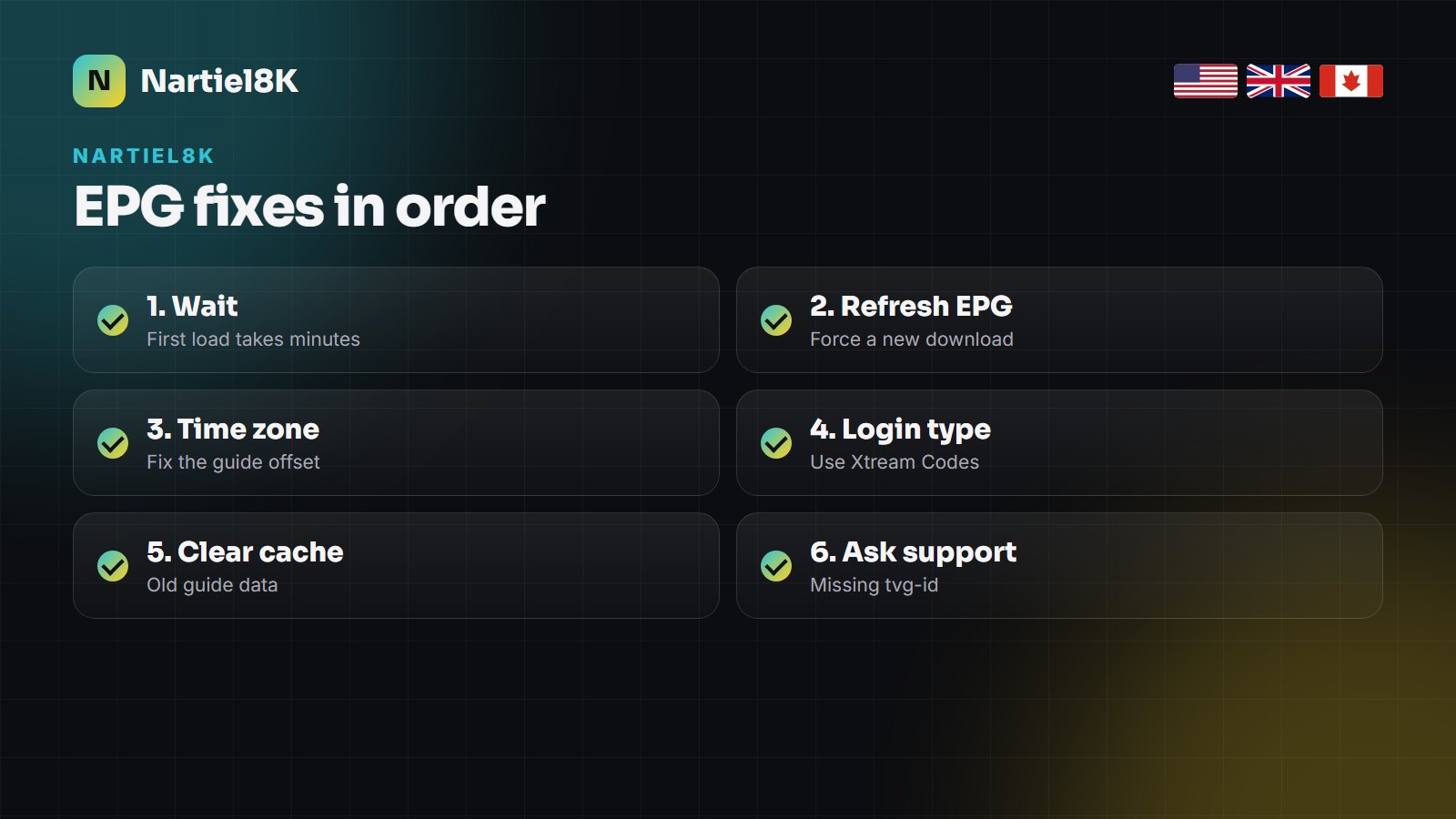
1. Give it a few minutes after the first login
On a new line the guide downloads after the channel list. On a Firestick that can take three to five minutes. Leave the app on the home screen until it finishes.
2. Force an EPG refresh
IPTV Smarters Pro: Settings > EPG > Refresh EPG (or the refresh icon on the TV guide screen). TiviMate: Settings > EPG > Update EPG. IBO Player: reload the playlist from the device page.
3. Fix the time offset
If the guide is there but an hour or more out, set the time zone. Smarters: Settings > Time Format / EPG Time Shift. TiviMate: Settings > EPG > EPG time offset. Also check the device’s own time zone and automatic time setting.
4. Use the Xtream Codes login, not a bare M3U
An Xtream Codes login (server, username, password) brings the guide with it. A plain M3U link does not, unless you also add the provider’s EPG URL in the player. Switching to Xtream Codes fixes most “no guide at all” cases.
5. Add or correct the EPG URL
If you must use M3U, paste the XMLTV address from your provider into the player’s EPG source field. Make sure it is the full URL, with your username and password where required.
6. Clear the app cache
On Android TV and Firestick: Settings > Applications > Manage installed applications > your player > Clear cache. Do not clear data unless you are ready to log in again.
7. Set a longer guide period
Some players keep only one day of listings by default. In TiviMate raise EPG days to keep; in Smarters reload the guide every day or two.
8. Check the device date and time
A stick with the wrong date (common after a power cut) shows an empty guide because it looks for listings in the wrong day. Turn on automatic date and time.
9. Report blank channels to support
If most of the guide works and a handful of channels stay blank, those channels need their tvg-id mapped. Send the channel names to support; it is a quick fix on our side.
Keep the guide working
- Leave automatic date and time on, on the device and in the player.
- Let the guide refresh once a day; most players do it on start-up.
- Do not clear app data unless you are ready to log in again.
- Keep the player updated, especially after a TV or Fire OS update.
Where the EPG settings are in each app
| App | Refresh guide | Time offset |
|---|---|---|
| IPTV Smarters Pro | Settings > EPG > Refresh | Settings > EPG time shift |
| TiviMate | Settings > EPG > Update EPG | Settings > EPG > EPG time offset |
| IBO Player | Reload playlist | Device time zone |
| VLC | No guide support | — |
TiviMate has the best guide of the lot; our TiviMate setup guide covers its EPG settings in detail.
More guides on the TV guide and players
Other IPTV sites have useful pages on this:
- What is EPG on IPTV? — DodoIPTV explains XMLTV and tvg-id with screenshots.
- IPTV catch-up explained — KiloTV on watching programmes from the past seven days through the guide.
- Xtream Codes vs M3U — Nexomir on why the login type decides whether the guide loads by itself.
- Best IPTV player — TrendyScreen compares the players with the best TV guides.
- TiviMate et BugsTV — a French TiviMate walkthrough from BugsTV, including the EPG settings.
IPTV EPG: FAQ
Usually the guide has not finished downloading, the time offset is wrong, the player is using an old cache, or you logged in with an M3U link that has no EPG URL. Refresh the EPG and check the time offset first.
Go to Settings, then EPG, and choose Refresh EPG, or use the refresh icon on the TV guide screen. Give it a few minutes on a Firestick.
The guide is almost always correct but shifted by your time zone. Set the EPG time offset in the player and turn on automatic date and time on the device.
Not with an Xtream Codes login, which loads the guide automatically. With a plain M3U playlist, yes: add the provider’s XMLTV URL in the player.
Those channels’ guide IDs do not match the listings. Send the channel names to support so the IDs can be mapped.
Nine times out of ten, a refresh and the right time offset bring the guide back. If it still will not load, message Nartiel8K support with your device and app and we will check the line. New here? Every plan on the pricing page includes the full seven-day guide, and the free 24-hour trial lets you test it first.
Related reading
Install a player with Downloader, log in with your Nartiel8K details and tune the Fire TV…
The real causes of freezing and lagging, in the order that finds the fault fastest —…